A complete walkthrough for how timesheet approvals work in VibeOps — covering setup for managers, submission for team members, review and approval, and what to do when changes are needed.
Log time
Submit period
Manager reviews
Approved & locked
Phase 1
Setting Up Approvals (Managers & Admins)
Before your team can submit timesheets for review, a manager or admin should configure submission rules and reminders from the Approvals tab on the Timesheet screen. Who approves a given week is not set here — each person chooses their approver in the Submit Timesheet modal when they submit.
Who does what
Managers and admins configure submission period, required hours, deadlines, and reminders via Manage Settings on Timesheet → Approvals.
Each team member (including managers submitting their own time) picks their approver in the Submit Timesheet modal before sending a week for approval.
Configure approval settings
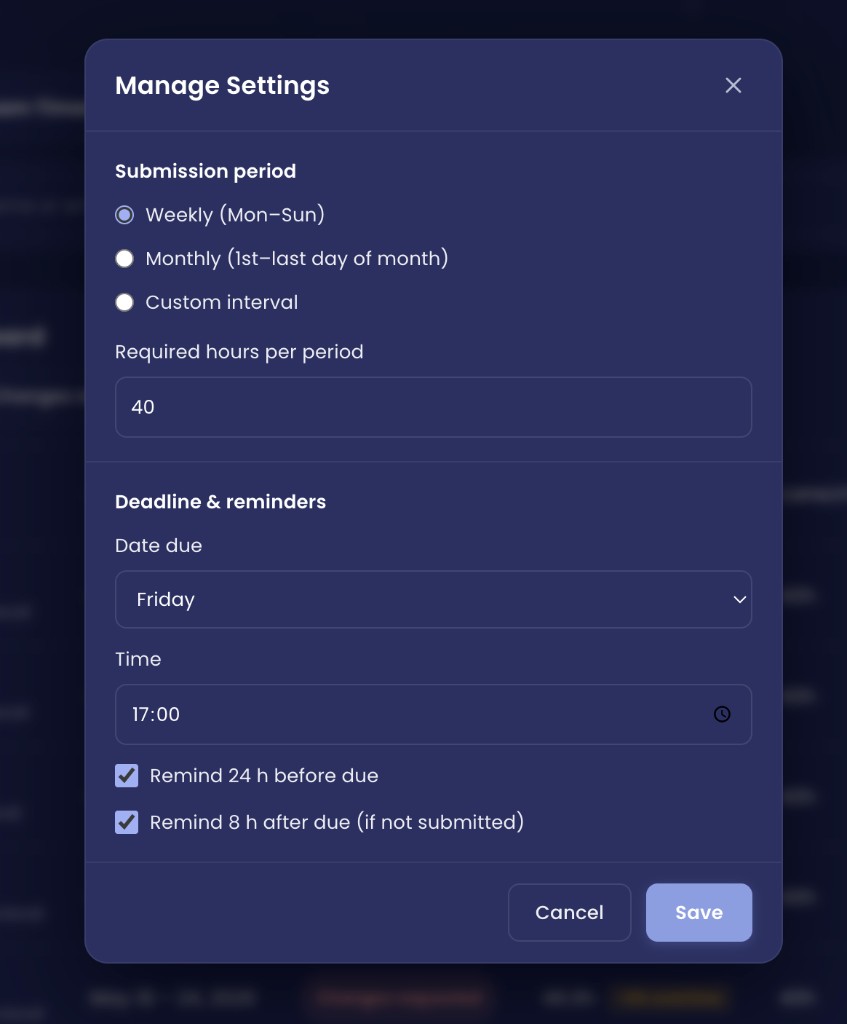
Open Manage Settings from the Approvals tab. This covers submission rules and reminders only — not who approves whom.
1
Go to Timesheet in the sidebar.
2
Open the Approvals tab.
3
Click the settings (gear) icon in the toolbar to open Manage Settings.
Submission period
Choose how often team members submit: Weekly (Mon–Sun); Monthly (1st–last day of month); or Custom interval.
Set required hours per period (e.g. 40).
This drives progress bars and "behind target" warnings on the timesheet and in reports.
Deadline & reminders
Pick the date due (default: Friday) and time (default: 17:00).
Toggle reminder options:
Remind 24 h before due, and Remind 8 h after due (if not submitted).
Note
VibeOps also runs server-side submission reminders (default: Friday at 15:00 UTC) for users who have not submitted the current week.
Click Save to apply both sections at once. You can reopen Manage Settings anytime to update them.
Not in Manage Settings
There is no submitter list and no per-user approver assignment in Manage Settings. Approver routing is handled entirely on the submitter's side — see Submit Timesheet modal in Phase 2.
Phase 2
Submitting a Timesheet (Team Members)
Anyone with the member role or higher (except viewer) logs time during the week and submits it for manager review.
Step-by-step: submit your week
1
Log time throughout the week using Quick Log (T), the floating timer, board cards, or AI suggestions. Entries auto-populate the timesheet grid.
2
Open Timesheet and navigate to the week you want to submit.
3
Review the grid:
Check daily totals (colour-coded: under 6h, 6–9h, 9–10h, over 10h). Confirm each row has a project and hours look correct. Toggle billable/non-billable per row if needed.
4
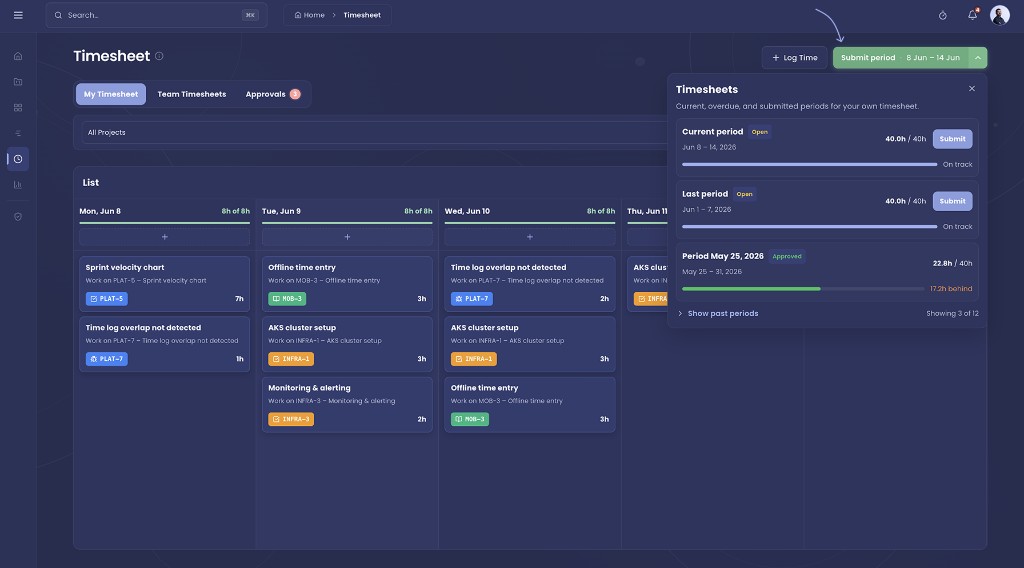
Click Submit period (green button in the header).
5
Review the Submit Timesheet modal and confirm (see below).
Submit Timesheet modal — choose your approver
Opens when you click Submit period. Use it to review your week and route the request to the right person.
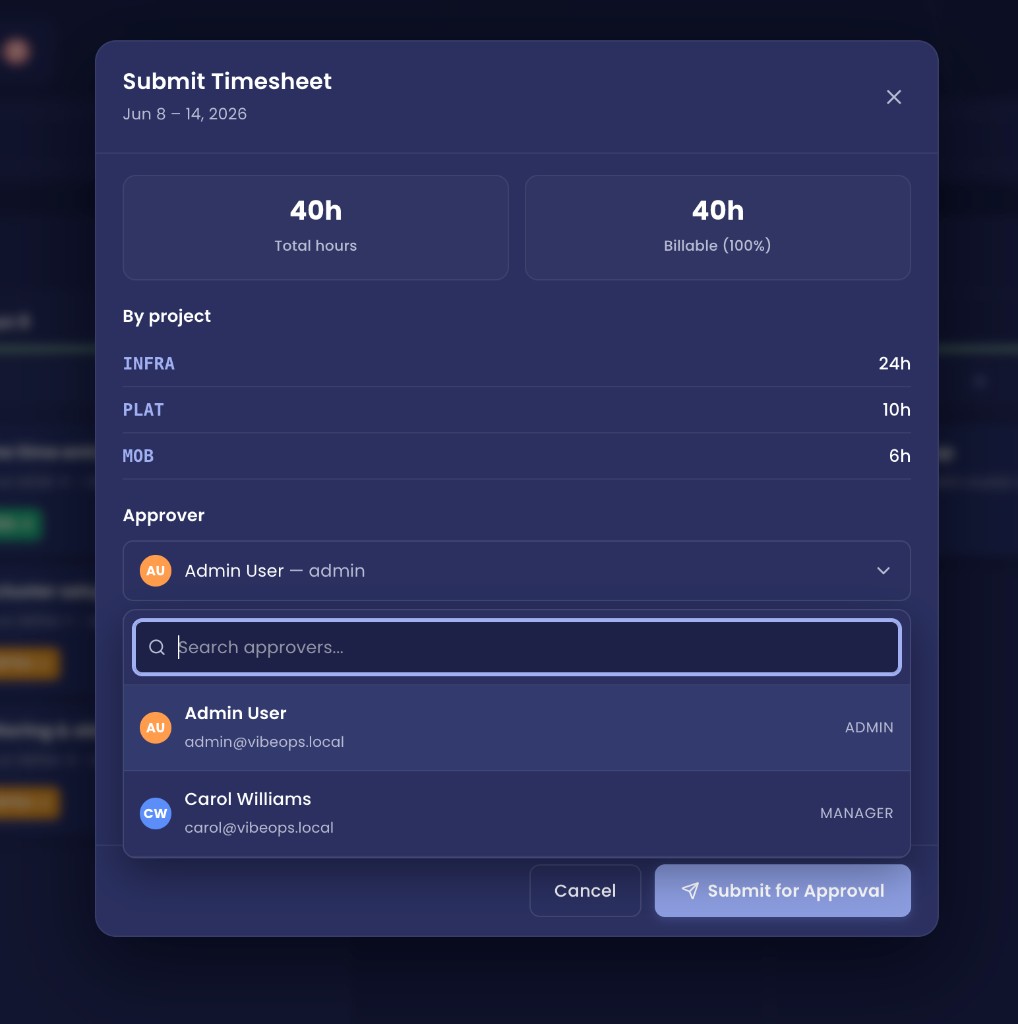
Before your timesheet is sent for approval, the Submit Timesheet modal shows a summary of the week and is the only place to choose who should review it. Members, managers, and admins all use the same modal when submitting their own time — there is no separate approver setup in Manage Settings.
Start by clicking Submit period on your timesheet. Pick the open week you want to send, then click Submit on that row.
The Submit Timesheet modal opens next — review your week, choose an approver, and confirm:
1
Check the summary cards — total hours, billable split, and overtime (if any).
2
Review the By project breakdown to confirm hours are on the right projects.
3
Open the Approver dropdown and select your reporting manager.
If no manager was assigned for you yet, or you need to route to someone else (e.g. a stand-in while your manager is away), pick the correct admin or manager here. The list includes every active admin and manager in your workspace.
4
Optionally add a note to approver — context your manager should know before reviewing.
5
Click Submit for Approval.
Who gets notified
The person you select in the Approver dropdown receives the in-app notification and email first. The helper text in the modal explains: “They get the notification first. Any admin or manager can still approve.” If you do not change the dropdown, VibeOps pre-selects the first admin in the workspace, or the first manager if no admins exist.
Resubmitting after rejection
When you fix a rejected week and submit again, the same modal opens — you can change the approver or note before resending.
Before you submit
Warning
You must have at least one row with hours logged before you can submit. Rows without a project will block submission.
After you submit
Status changes to Waiting for approval.
Your selected approver receives an in-app notification and email.
You can Recall submission while the week is still submitted — this returns it to Draft so you can edit again.
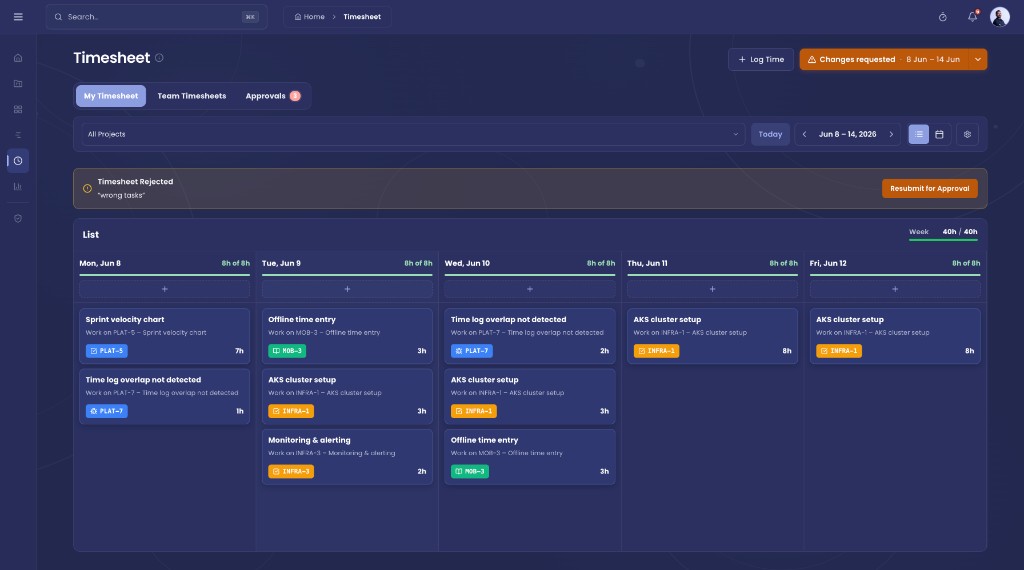
If your timesheet is rejected ("Changes requested")
1
An amber banner appears on the timesheet with the manager's reason.
2
Fix the flagged entries (add, edit, or delete time logs).
3
Click Submit period again to resubmit.
4
The week goes back to your approver's queue.
If your timesheet is approved
The primary button shows Approved (disabled).
All time entries for that week are locked.
Contact your manager if corrections are needed — they can reopen the period for their own edits or recall approval to send it back to you (see Phase 3).
Phase 3
Reviewing & Approving (Managers & Admins)
Managers and admins review submitted weeks, approve or reject them, and can correct entries when needed.
Where managers work
Timesheet → Approvals tab — approval dashboard
Approval detail (/timesheet/approvals/:userId/:weekDate) — full week review
Time Hub — pending approvals and batch actions (if enabled)
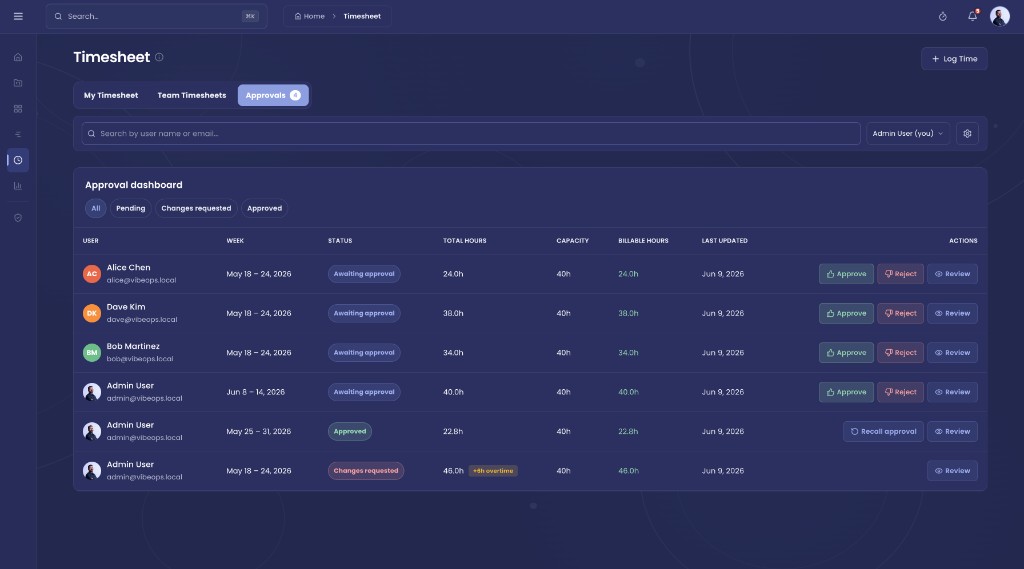
The approval dashboard
The dashboard lists team timesheets with filters:
All
Pending — awaiting review
Changes requested — rejected; waiting for member to resubmit
Approved — finalized weeks
Each row shows the team member, week range, total hours, billable split, and hours vs required target.
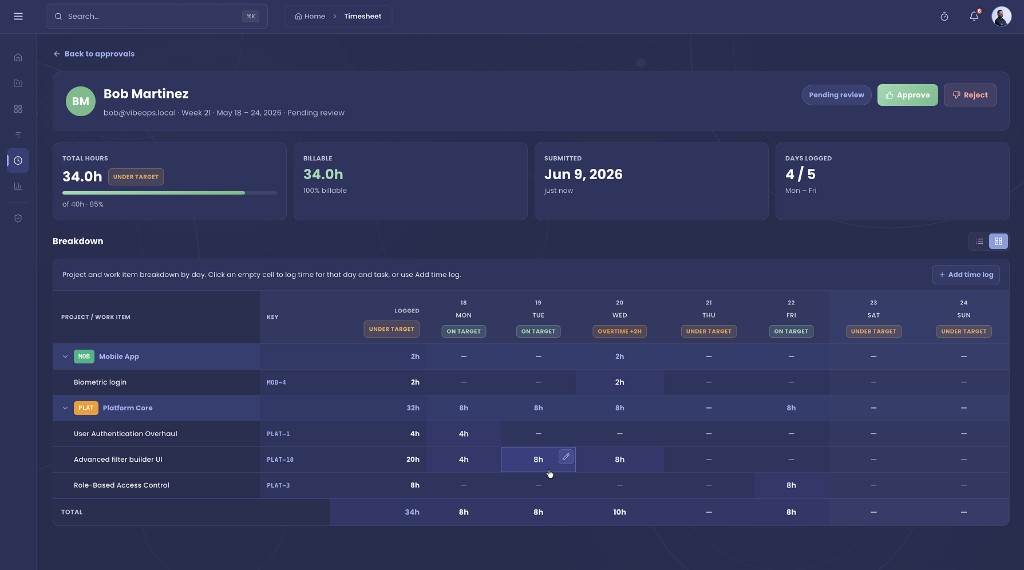
Review a single timesheet
1
Click a row to open the approval detail screen.
2
Review the week grid (switch between list and grid view).
3
Check daily totals, project breakdown, and any variance flags.
4
Choose an action from the table below.
Action
When to use
What happens
Approve
Hours look correct
Week locked; member notified
Reject
Member must fix entries
Status → Changes requested; reason required; member can edit
Edit
You want to fix entries yourself
Available while status is Submitted, or after Reopened for edit on an approved week
Note
While a week is Changes requested (with the member), managers cannot edit that member's time logs.
Rejecting a timesheet
1
Click Reject.
2
Enter a reason — required; shown to the member.
3
Confirm.
The member receives an in-app notification and email with your reason. Their time logs return to draft so they can edit and resubmit.
Note
Any manager or admin can approve a timesheet, even if someone else was selected as the requested approver at submit time. The requested approver only affects who gets notified first.
Correcting an already-approved week
If you approved a week but need to fix hours yourself (without sending it back to the member):
1
Open the approval detail for that week.
2
Start editing an entry — VibeOps reopens the period for manager edit.
3
Make your corrections (add, edit, or delete entries).
4
Click Approve again to re-finalize the week.
The period shows Reopened for edit until you re-approve.
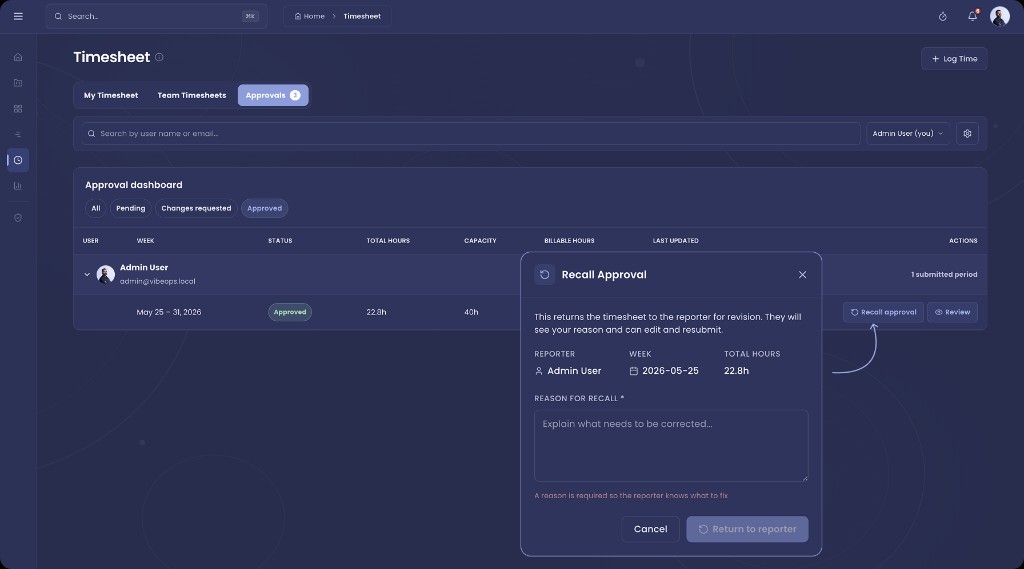
Recalling approval (send back to member)
If the member needs to make corrections after approval:
1
Open the approved week in approval detail.
2
Click Recall approval.
3
Enter a reason (required).
4
Confirm.
The week returns to Changes requested. Time logs unlock for the member to edit and resubmit.
Tips & Troubleshooting
I submitted too early
Recall your submission while the status is still Submitted. The week returns to Draft and you can edit again.
My manager approved but the hours are wrong
Ask your manager to Recall approval (sends the week back to you) or Reopen for edit (they fix it and re-approve).
Who should approve my timesheet?
You choose each time you submit — open the Approver dropdown in the Submit Timesheet modal and pick your reporting manager (or another admin/manager if needed). Approvers are not pre-assigned in Manage Settings. Any manager or admin in the workspace can still approve.
I need to approve 15 people on Monday morning
Use the Approvals tab or Time Hub → select pending rows → Batch Approve.
Approved weeks are locked — can I still edit old entries?
Not without manager or admin action. Approved time logs are locked at the database level to preserve audit integrity.
What plan do I need for approvals?
The full approval workflow (manager queue, Approvals tab, batch approve) requires the Plus plan (timesheet_approvals). Basic timesheet logging and submit are available on all tiers.
Edits to time older than 7 days
Platform policy may require a written reason and approver sign-off for backdated changes. Check with your workspace admin.
Need help with approvals?
If your team has a complex approval structure (multiple approvers per person, project-based chains, or client-facing review), contact your workspace admin or reach out to support.